
USING THE CUSTOMER APP
Welcome Customer!
OUR CUSTOMER APP WILL BE RELEASED SOON !
We have made our app as simple as possible, to get you results as fast as possible, as economic as possible and with providers whose past ratings and reviews you can be viewed. Simply post your jobs to the relevant category and wait for the estimates to arrive.
Please note the following:
• The location of your job will be displayed on your job listings
• The estimates you are sent may of course differ from the final costing of any job.
• It is your responsibility to pay your provider directly, this is not done via the app.
• BidME does not get involved with any disputes, we simply introduce people.
•Our full terms and conditions must be agreed before using the app.
If you have any questions the do feel free to contact our support team.
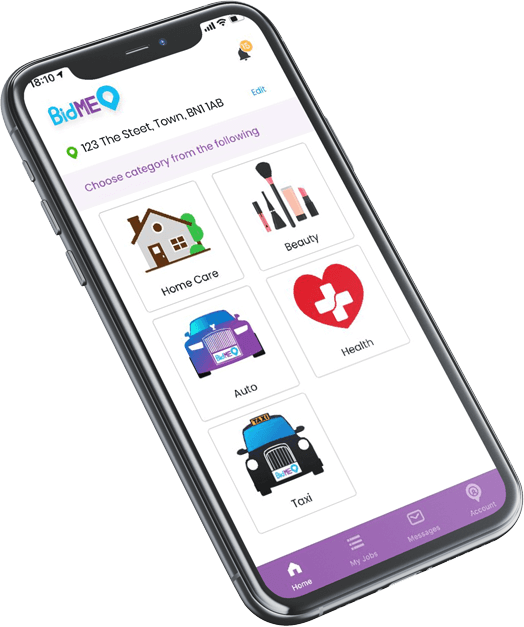
The Customer app in a nutshell
- Select the main category and subcategory you require
- Fill in the details for the job posting and click ‘Confirm & Post’
- Providers who cover you area will see the posting and may send you an estimated bid and even ask questions to help them fine-tune their bid
- When the bids come in reviews them and select one by clicking ‘Give Job’. You and the provider may now also chat about the job via the app
- When the provider marks the job as complete go to the job and ‘Confirm Job Complete’, you are then shown an invoice and the amount request for payment, simply hit confirm, you will then be asked to submit how much you will be paying the provider directly.
- Review the provider, give them a rating out of five and share your thoughts on the their service to help customers in the future
- Thats it…. “Job Done”
Want to know more?
READ ON……
The fine details….
Below we have provided more detailed information on every step of the process, there are also videos of how the process works. Click to any step you want to know more about.
If you have any questions the do feel free to contact our support team.
Posting a job...
-
Select Main Category
More of these will be coming in time.
-
Select Sub-Category
The app will only display categories that have active users that cover your location. If none are shown then help use spread the word in your area by clicking on the 'Spread the Word ' button. Also ensure you have entered you location, so the app can see where you are, and who's around to help.
-
Provide Job Title
Think about the providers who will read your post, summarise the job as briefly as possible, for example you could say "Tap Leaking" rather than providing something non-descriptive such as "Help Me".
-
Give Description
Here you can go into more detail, think about what the service provider may want to know, is there a particular brand, make or model you could mention that will allow the provider to understand your job and help them with the initial quote they provide.Of course the initial bid quote could change after they have inspected the problem, just as it would in reality, the Provider should discuss this with you, they will also provide a 'final costing' when they mark the job as completed.
-
Check the location
Make sure you use the correct location on the job posting, remember if you want you grans boiler fixing then make sure to change the location to her address.
-
Add photos
You can upload photos to the job, If you need something fixing then obviously show the issue in the photo, but maybe also consider the location, for example if theres a crack in a ceiling then provide a close up and also a shot of the whole room so the provider can see if the issue is accessible.
If you want your nails painting or your hair cut a certain way then why not upload an example photo of what you are looking for. -
Is it urgent?
We have added this option so you can let the providers know that it is urgent, do please consider this and dont make everything urgent, remember that everyone is allowed to rate each other, so try not to be cheeky.
Also be aware that urgent call outs can be more expensive! -
Confirm the job posting
Once you have entered all the information you can then click the 'Confirm & Post' button, you will then be reminded that you must of read and understood the terms and conditions of the app, then you may make the posting live.
Awarding a job...
-
Go to 'My Jobs'
This is where you will find all the jobs you have posted.
-
Select the job'
Tap on the job that you wish to see the current bids for.
-
Evaluate
Here you can see the information the provider has included with their bid, you can see the estimated costing, their rating and the date they estimate that they can be with you. If you want to know more about the provider then tap on their image or name.
Should you need to you can remove some bids if you wish to shortlist them and come back to them later. -
Award the job
Once you have made a choice then click on 'Give Job'. Thats it.
You will also now be able to chat to the provider directly via the app by tapping the 'Chat' icon.
Communication...
There are several ways you can start chatting to an assigned service provider:
-
Via the Job itself
If you go into any assigned job you will see a 'Chat' Icon by the providers name.
-
Via the home Screen
Simply click on the 'Messages' icon to see all your chat history.
-
Via notification
Simply click on any push notification you see appear on your phone to be taken to the chat, if you miss any notifications then you can find a history of them all by tapping the Bell Icon in the top right corner of the home screen.
Complete and review
-
Go to the job
After receiving a notification that the job is complete go to the job or click on the notification.
-
Confirm complete
If you agree the job is complete then click the 'Confirm Job Completed' button.
-
Confirm payment
Click 'Pay / View Invoice'
-
Check Invoice
Next you will be presented the the final amount requests, if you agree click 'Confirm'
-
Input amount you will be paying
Here we ask you how much you paid for the job, if you are to pay more or less then requested then here is where you will input what you have paid, then hit 'Submit'.
-
Rate and review
Finally you will be prompted to give the provider a rating out of five and write a short review.